Posts

Display “Append Changes to Existing Text” Fields in a Custom List Form Web Part

Image
I want to thank Brian Hunsaker for pointing this out to me. I've posted several times about the difficulties I've had in the past with displaying text fields in custom web parts where the "Append Changes to Existing Text" option is turned on. An example of this is the comments field in the test issues list: I still don't know how to get this to show up in a custom Data View Web Part, but at least, with Brian's help, I've found a line of code that will allow you to display comments with a custom list form. Here's how you add a custom list form and display the comments field within SharePoint Designer 2007. I created a blank Web Part Page as my starting point. After selecting the correct web part zone, go to Insert > SharePoint Controls > Custom List Form : For this example, I'm going to use the following options: Find the line of code that references your Comments field (the text field with "Append Changes to Existing Text...

LINKS on SharePoint

http://www.sharepoint-tips.com/2007/01/sharepoint-2007-beta-exams-tips.html http://www.andrewconnell.com/blog/ http://blog.helloitsliam.com/default.aspx http://chrissyblanco.blogspot.com/2007_08_01_archive.html

Migration MOSS 2007 to SharePoint 2010

http://rajkamal29.blogspot.com/2009/12/migration-sharepoint-2007-to-sharepoint.html http://blog.tallan.com/2011/03/29/upgrading-a-sharepoint-2007-content-database-to-sharepoint-2010/ http://rahulbach.blogspot.com/2010/08/migrate-moss-2007-to-sharepoint-server.html http://mrin17.wordpress.com/2010/05/14/migration-strategies-and-step-by-step-%E2%80%93-migrating-from-moss-2007-to-sharepoint-2010/ http://www.jeremytaylor.net/2010/06/11/moss-sharepoint-2007-ssp-migration-to-sharepoint-2010/ Migrating custom assemblies(webparts, usercontrols, workflows, eventhandlers etc.,) to SharePoint 2010  : http://mosshowto.blogspot.com/2010/06/sharepoint-2010-dll-migration.html

show/Hide SharePoint list Fields based on sharepoint groups using JQuery

http://sharepointjavascript.wordpress.com/2009/09/20/showing-or-hiding-list-fields-based-on-membership-in-a-sharepoint-group/ http://sympmarc.com/2010/01/29/determining-if-a-user-is-in-a-permission-group-with-sharepoints-web-services/ http://spservices.codeplex.com/wikipage?title=GetGroupCollectionFromUser http://www.smashedlife.com/2010/06/hide-edit-fields-based-on-sharepoint-permissions/

Creating a SharePoint Solution Package (.wsp)

Image
Creating a SharePoint Solution Package (.wsp) in 5 steps Step 1. Folders First, create the folder structure for the solution. I used MySolution but you can give a name whatever you want. Two folders were created beneath MySolution - source and bin . First is for the compiled package, second – to keep the feature and the customized list. I use the same file structure for the feature as in SharePoint - one folder per feature.   Check out your SharePoint features hive at C:\Program Files\Common Files\Microsoft Shared\web server extensions\12\TEMPLATE\FEATURES\DiscussionsList and see how it’s organized.   In the source folder I made the feature folder called MyList and 2 subfolders inside - List Templates and Messages .   In the end you will have something like this: Step 2. Building a Feature. Here we create our feature based on the SharePoint discussions list. Go to MyList folder and create a file feature.xml, where we reference 2 files, first – list manifest ...

SharePoint Interview Questions

Please refer this blog http://manomangaldas.blogspot.com/search/label/Interview

How to: combine multiple projects in one WSPBuilder Solution

Image
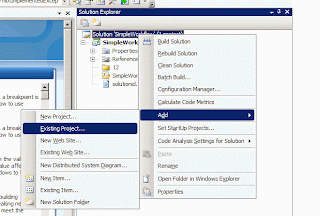
We frequently use WSPBuilder to package the WSP solutions. We may need multiple projects but we need to just one WSP solution. After reading WSPBuilder documentation, I found a that "BuildSolution" command doesn't work. (or may be I have not used it properly). But I have user an alternative approach. For an illustration, I two WSPBuilder projects and already complied: 1) SimpleWorkflow 2) SimpleEventHandler To combine multiple projects into one WSPBuidler solution (i.e. single WSP), we have to follow these steps: STEP1: Choose any base project such as SimpleWorkflow. Right-click on "Solution" and choose "Add Existing Project". STEP2: View both the projects as shown: STEP3: Add a new deployment project. Its better to add a completely new project just for the deployment. Right-click on "Solution" and choose "Add New Project". STEP4: Right click on _Deployment proj...