Posts

Cancel bulk running flows in Powerautomate

1)  When we are in the All runs view, we need to open the developer console in the browser. The developer console can be opened by clicking F12 (or holding fn and F12) on Windows 2)  In the developer console, navigate to the  Console  pane. To clear the console window click CTRL + L. The console pane is where we are going to add the JavaScript code that will cancel the running flows.  3)  Copy the first part and run this first, you will get and an error the first time and the second time it works //Include jquery (you may need to paste this following twice) var jq = document.createElement('script'); jq.src="https://cdnjs.cloudflare.com/ajax/libs/jquery/3.3.1/jquery.min.js"; document.getElementsByTagName('head')[0].appendChild(jq); jQuery.noConflict() 4)  Then copy the other part, this will start to cancel the flow that is running // Cancel all running flows ( This part you only paste once) confirm = function () {return true;}; setInterval(function () {...
Execute workflow based on Modified item - Power automate

Image
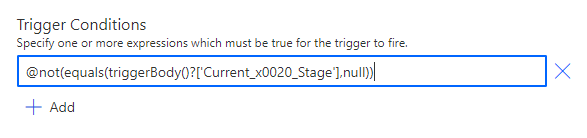
  if you want to trigger the flow only when an existing item is modified in your SharePoint list, you could consider add the "When an item is created or modified" as the trigger of your flow and add a Condition to check if the existing item is modified trigger yur flow. please take a try with the following workaround: Add a "When an item is created or modified" trigger in Power automate Go to settings using ... In the Trigger Conditions Add the below code @not(equals(triggerBody()['Created'], triggerBody()['Modified'])) OR  if you want to execute the workflow based on field value then use the below code @not(equals(triggerBody()?['Current_x0020_Stage'],null)) ----------------- https://www.c-sharpcorner.com/article/flow-trigger-conditions-for-sharepoint-run-flow-when-needed/

Display Multiselect dropdown selected values and contains function

 Place label under Multiselected dropdown control 1) copy the dropdown datacard name  2) Use the below code in Text property of Label Concat( DataCardValue4 .SelectedItems,Value & "; ") Note: Replace DataCardValue4 with your DataCard value ------------------------------------------------------ Contains text in the dropdown value If(" Remote " in DataCardValue1.Selected.Value , true,false) FYI: Remote is the dropdown value option           DataCardValue1 is dropdown control.

SharePoint Online: Change List URL using PowerShell

Save this file as .ps1 extension and execute in powershell/SharePoint Online Powershell ------------------------------------------------------------------------------------ #Web url where is the list exist, of which we need to change the URL   $url = " https://test.sharepoint.com/sites/sample/ "       $userName =" Your sie User Name " # Your site user name   $password =" Password " # Password     # convert password into secured string   $securedpw = ConvertTo-SecureString $password -AsPlainText -Force     #Creating instance of client context   [Microsoft.SharePoint.Client.ClientContext]$clientContext = New-Object Microsoft.SharePoint.Client.ClientContext($url)      $clientContext.Credentials = New-Object Microsoft.SharePoint.Client.SharePointOnlineCredentials($userName, $securedpw)     #Fetching the list   $web = $clientContext.Web   $lists = $...

Rich text control format in Powerapps

Rich Text control in SharePoint 2010 data will show in Powerapps with DIV tags. To display in correct format. Use the below steps 1) open list form in Power Apps 2) Select multiselected data control 3) unlock the data card 4) select Multiselected text box 5) convert Single line text to Multi line in the control properties 6) use this code in default section PlainText(Parent.Default)

Reuse a Deleted SharePoint Site Name and Site Url in SharePoint Online

Image
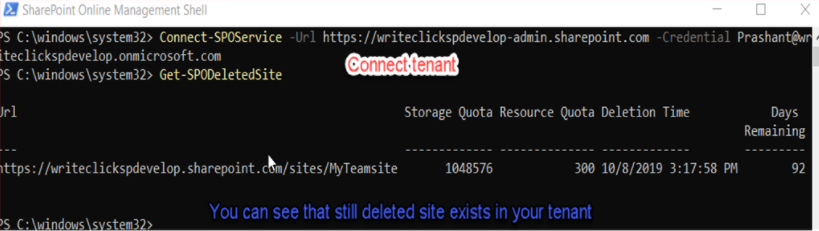
Prepared based on the below articles https://www.c-sharpcorner.com/article/reusing-a-deleted-sharepoint-online-team-site-name/ https://morgantechspace.com/2018/07/how-to-reuse-deleted-sharepoint-site-url.html --------------------------------------- When you delete a SharePoint Site from Office 365, by default the deleted site will be retained in the Site Collection Recycle Bin for 93 days (Retention Period) and if you have deleted a site collection, then the site collection will be retained in Tenant Recycle Bin. The deleted sites are automatically emptied from the Site Collection/Tenant Recycle Bin after the retention period. You can restore a deleted site before this retention period time end. Scenario 1: Consider that you have deleted a team site and you want to create another site with same name and site url. In this case, you can create a site with the same name but you can’t reuse the deleted site url until the deleted site exists in Recycle Bin. If you are creating another site ...

Navigate to screens based on the SharePoint List field value in PowerApps

Display Different FormViews based on SharePoint list value When edit the selected item. 1) Duplicate  screens from the FormScreen1 2)  Set the  OnEdit  property of the  SharePointIntegration  control to following formula: Set(Varcurrent,LookUp(' YourSPList ', ID=SharePointIntegration.SelectedListItemID, CurrentStage)); If(Varcurrent="IT",Navigate(SharePointForm1_1,ScreenTransition.Fade), Varcurrent="Facilities",Navigate(SharePointForm1_2,ScreenTransition.Fade)); 3)  Set the  OnSave  property of the  SharePointIntegration  control to following formula: If(     IsBlank(Varcurrent),  SubmitForm(SharePointForm1),     Varcurrent="IT",SubmitForm(SharePointForm1_1),     Varcurrent=" Facilities ",SubmitForm(SharePointForm1_2) )